

 | CH637Computational Organic Chemistry(
CRN 27694 )Remote access to Wngr343d |  |
 | ||
 | ||
 | ||

|
The primary computing resource available for this course is wngr343d, a Linux-based computer housed in my group area in Weniger 343. While you are welcome to use the local console in this room at any time, access to the room may be limited if I am not present. However, with several steps, you can set up remote access with both text and graphics. (This is the same general procedure for accessing the NMR facility, so you may already have some of your local software ready to go.) 1. Get a SSH client.You will need a ssh client for whatever computer you are using.Windows: This may be obtained from http://www.ssh.com/support/downloads/secureshellwks/non-commercial.html; you may need to consult an administrator to install it. Note that this should be part of a standard COSINe install on Department computers. When you launch it you will need three things: Host: 128.193.223.198 (Any problems might be due to COSINe changing the IP address; check with me if so) Username: Your user name (your ONID account name) Password: Your OSU ID number (to start with). Mac: This is built-in; open a terminal and type ssh <username>@128.193.223.198 where <username> is you ONID account name. If that is your account name on the computer you are using, it is unnecessary. You will be asked for a password, which is your OSU ID number (to start with). Note: Please change your password the first time you log in. The command is: passwd You will be asked to type your old password, the your new password twice. Good passwords have mixtures of numbers, letters, capitals, lowercase, and special characters. 2. Run startvnc.The commandstartvnc will initiate your graphic desktop. This command needs to be run only once (in principle), though if the box has to be restarted (i.e., there is a power failure), you will need to rerun it. The first thing that will hapen is a request for a desktop password. This may be the same as your chosen login password, but it need not be. If it is too short or too long, you will be told so. If it is accepted (after you verify it), the desktop will be started, and you will get a message like: New 'X' desktop is wngr343d:45 Remember this number! You will need it in a bit. I will refer to it as XX in discussion below. 3. Open a Java-enabled Web browser.Any Web browser will do, so long as it has Java enabled. You may need to download it from www.java.com. Connect to your X desktop at the following address: http://128.193.223.198:58XX where XX is the number of your server (from above). If Java is working, you will get the following screen: 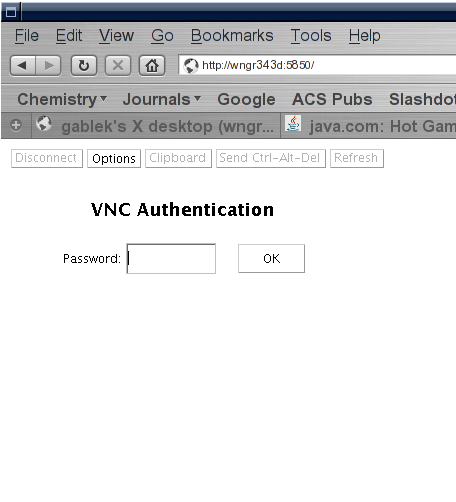 (If not, you will probably see a "broken plugin" icon.) Click on the password block and enter your password, and click on "OK", and your desktop will pop up. You may have to run through a configuration wizard the first time. Bookmard this page for when you return; when you are done, close any instances of Spartan (we only have two licenses), and click on "Disconnect" at the top of the window: 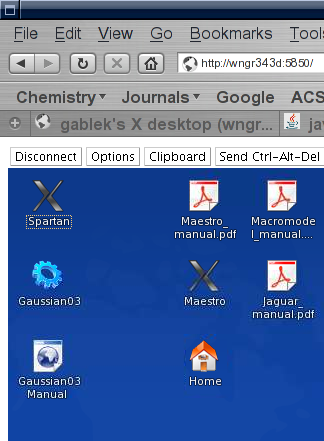 Tips for improving performance:Under "Options", there are several things that can be tweaked to improve performance. Some of these will degrade the appearance of the X desktop, so play around to find the right balance.
Return to CH 637 Home Page |