 | CH637Computational Organic Chemistry(
CRN 27694 )Remote file access |  |
 | ||
 | ||
 | ||

|
There are a number of convenient ways to move files over the net.
I will describe a couple, including possible software needs
and quirks.Windows File SharesThe ubiquity of Windows on the University network opens a simple, drag-and-drop means of seeing and moving files. Weniger 343 is equipped to interface with the Windows "Network Neighborhood" provided your account name on wngr343d is identical to your Windows login name. (If this is not the case let me know and I can map the two properly.)Select "Network Neighborhood" or "My Network Places"; and click through "Entire Network"; "Microsoft Windows Network"; Science": and scroll down to "wngr343d". Your folder should be available for opening, and you can drag-n-drop files between your local computer and wngr343d (or open/save the remote file, etc.). You may also map this share to a drive (right-click on your home folder on wngr343d, select "Map Network Drive", and fill in the blanks as they appear). 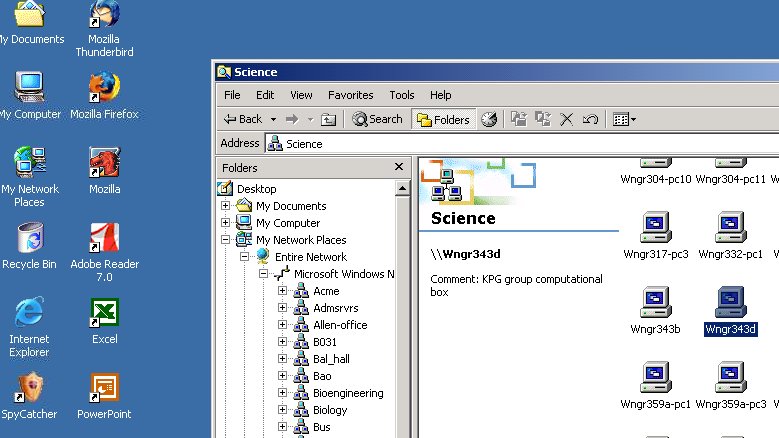 If you use a Mac, good directions on how to get to Windows shares are located here. (Revised 1/17) 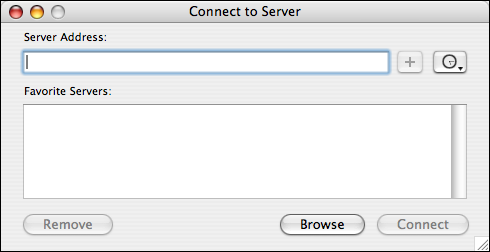 Some notes on this:
A dialog will pop up asking for a password. The Domain and Name should be correct (ONID or SCIENCE, and your account name) based on the syntax above. Make sure the username is correct, and use your ONID (or Science) password--not the password on wngr343d! 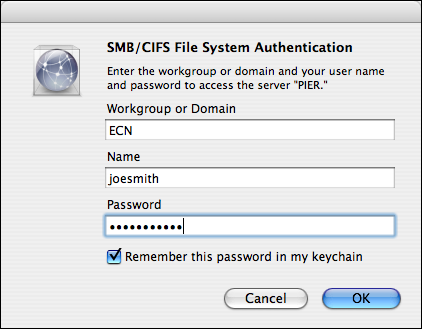
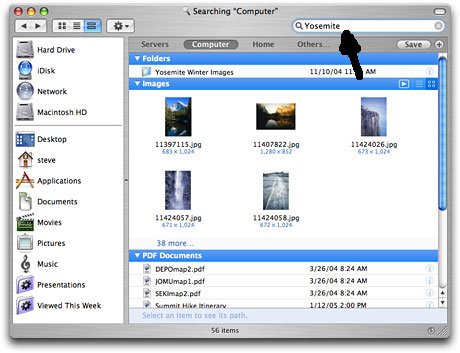
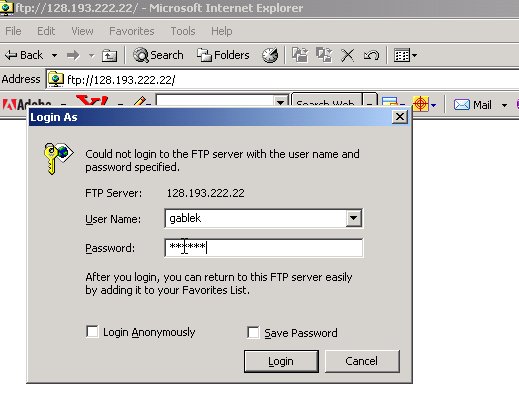
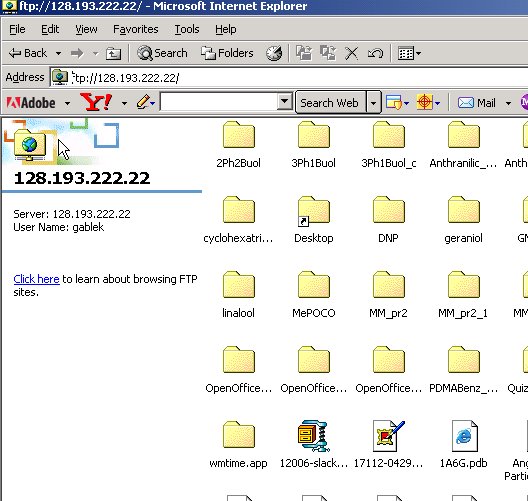
Again, make sure that you are looking at "everywhere", and you may have to try a couple of times to make the connection show up. Via either method, moving files is drag-n-drop between local and remote folders. FTP using a browserUnfortunately, if you are working off-campus, the Microsoft network may not be available unless you delve into setting up a VPN connection. A simpler method is to to use FTP (File Transfer Protocol) software. Many Web browsers have this capability built in.To pull files from wngr343d to your local computer, open a Web browser and type in the following location: ftp://<username>@128.193.222.22 where <username> is your account name on wngr343d. You will be asked for your password; you may then download any file by clicking on it.
If you are using IE on Windows, you can also do drag-n-drop moving between local & remote computers. It's a bit more complicated with Firefox; you have to install an extension called FireFTP and then select (from the Tools menu) "FireFTP". 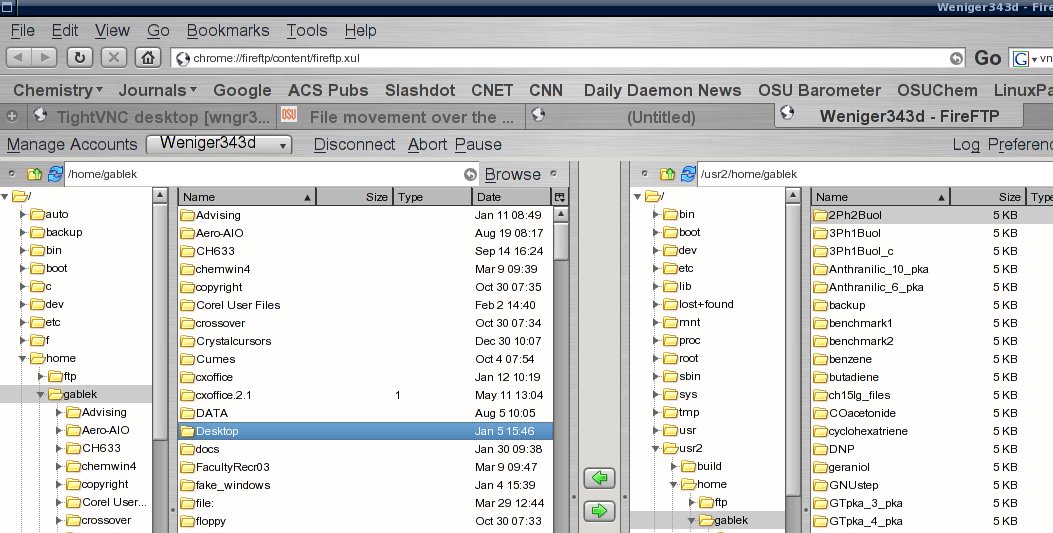 FTP using Fetch, WS_FTP or other clientsMany dedicated FTP clients exist; their use generally is based on logging in via the FTP port (21, if you need to select one), and selecting files to move between a local and remote directory. The advantage is that these specialized clients can often take advantage of things like recursive copying of directories, connection via SSH (port 22), and more general flexibility than a browser provides. It's your choice. (There's even a command-line FTP function on both Windows and Macs, if you are interested.)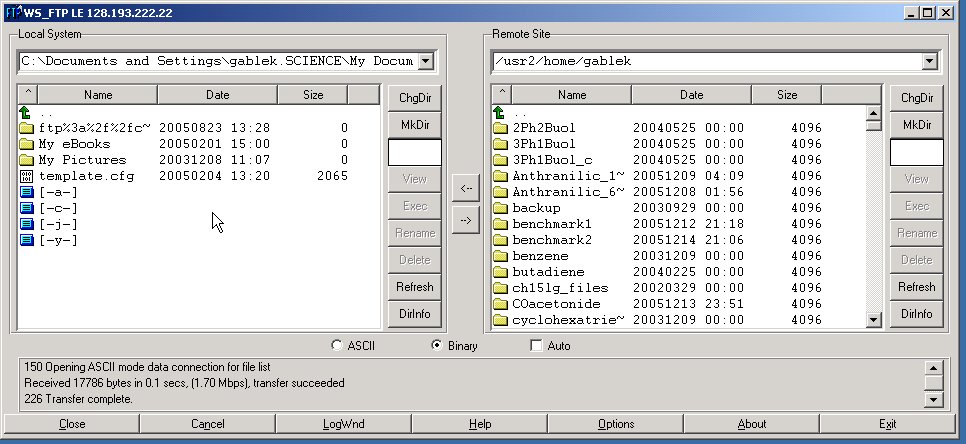 Last updated: 01/17/2006 Return to CH 637 Home Page |